Creating a Slack Workspace
This helper is only needed for the optional Bookstore Slack extension. You need a Slack account and permission to create an app and incoming webhook in the target workspace. If you already have a workspace, skip directly to webhook setup.
To create a Slack workspace, follow these steps:
- Visit https://slack.com/get-started#/createnew.
- Enter your email address and click Continue, or continue with Apple or Google.
- Check your email for a confirmation code.
- Enter the code on the Slack website.
- Click "Create a Workspace" and follow the prompts.
- For detailed instructions how to create a workspace via the Desktop App, Android or iOS, refer to Create a Slack workspace.
Adding Channels to Your Workspace
After creating your Slack workspace, you can add channels by following these steps:
- Click the '+' icon next to 'Channels' on the sidebar of your Slack workspace.
- Choose "Create a channel" and specify the channel name and purpose.
- For enterprise grid organizations, refer to Slack's help article for instructions.
Setting Up a Webhook for Notifications
To set up a webhook for sending notifications to your Slack workspace:
-
1: Create a Slack app, following the instructions by signing in, adding name and workspace to put the app in.
-
2: After this, you'll be redirected to the setting pages of your new app. Choose Incoming Webhook and toggle Activate Webhook.
-
3: Scroll down to click the option Add New Webhook to Workspace.
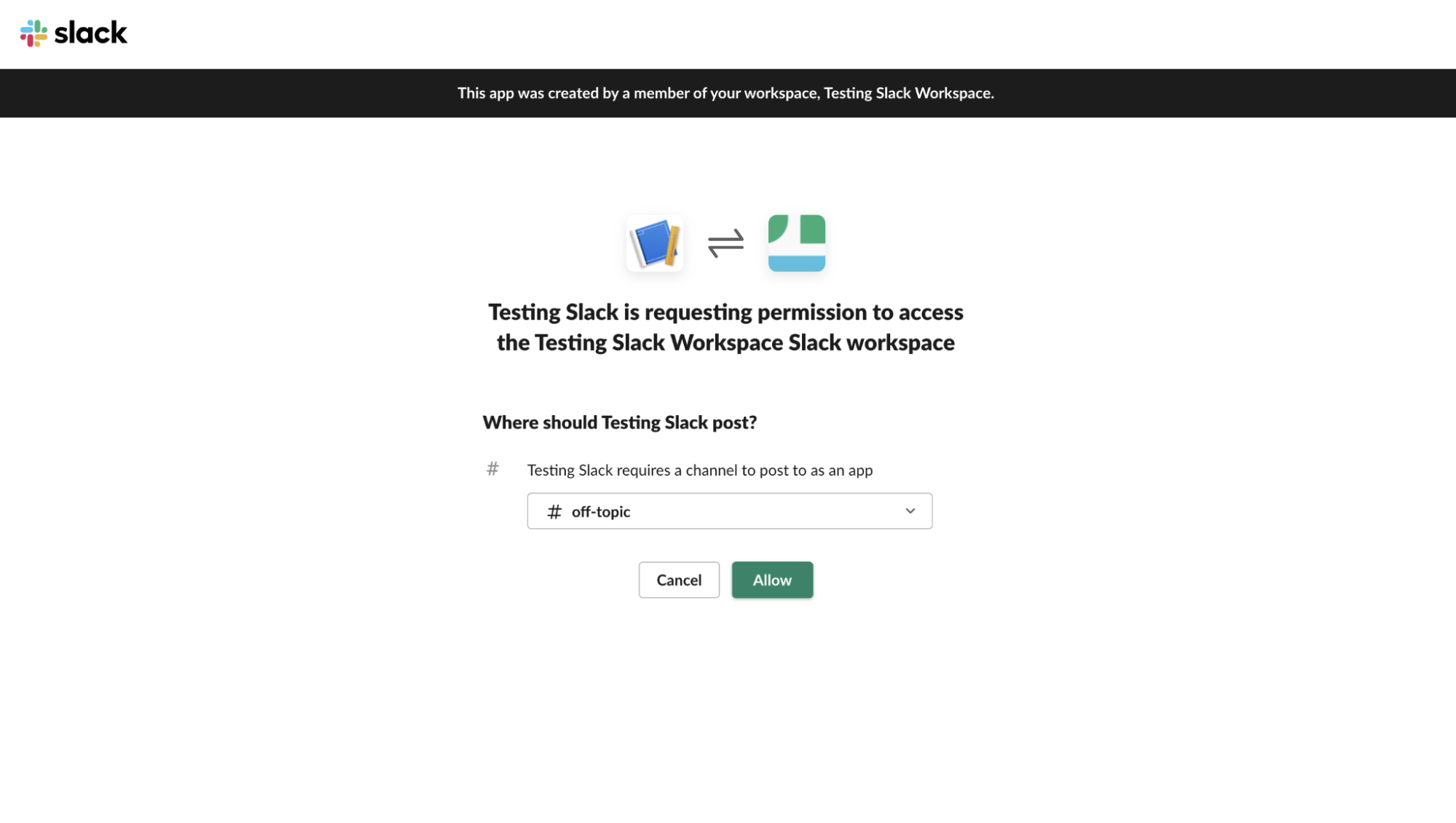
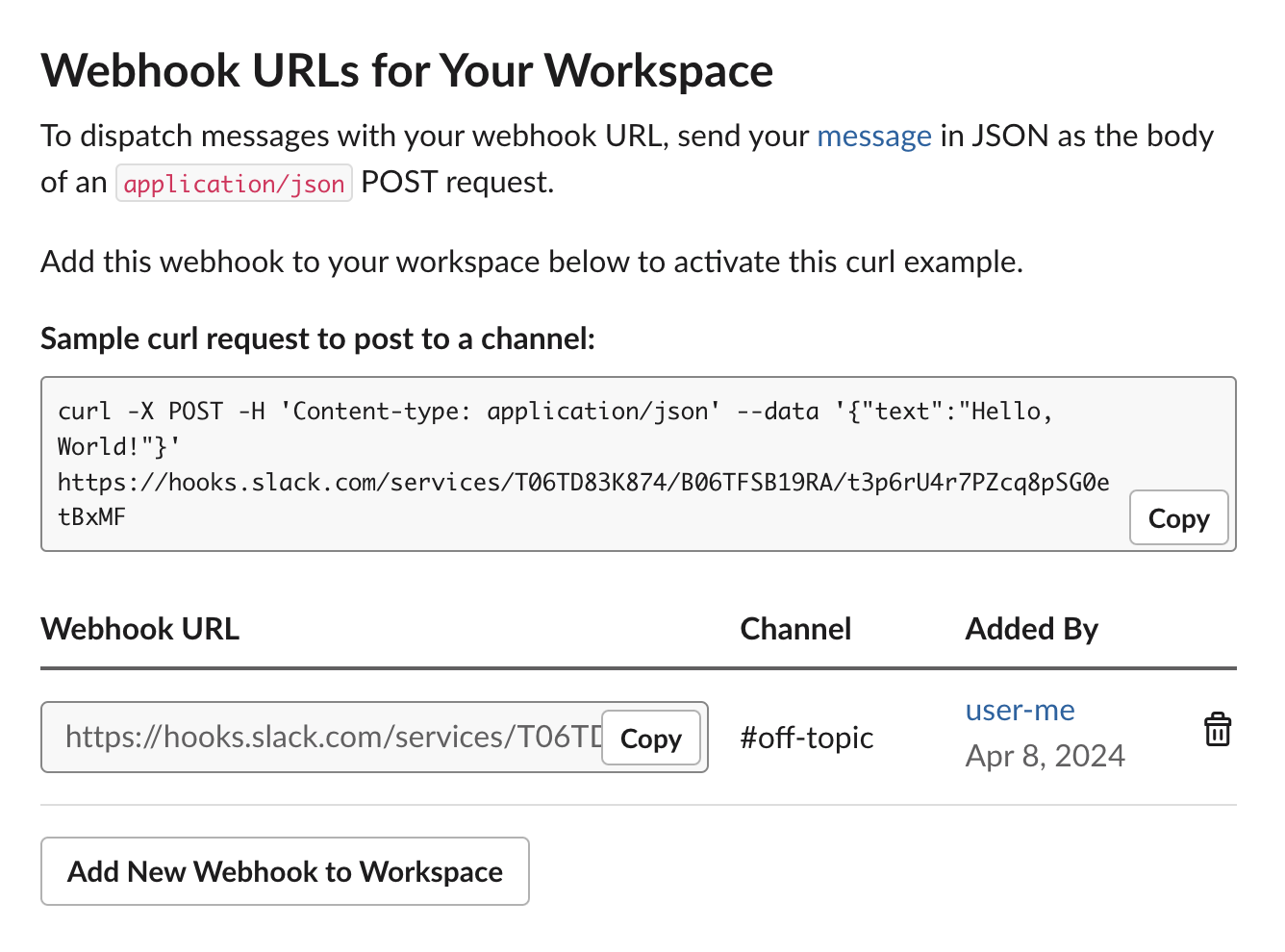
- 4: The page will give you a link associated with the app you created. This link will be where API requests are sent to send messages to your Slack workspace.
- 5: To test if the webhook works as needed, you can try sending an API request to this link to see if the message goes through. I used Postman to test this. Send a JSON request body with the
Content-Type: application/jsonheader; use the example in Slack's webhook documentation.
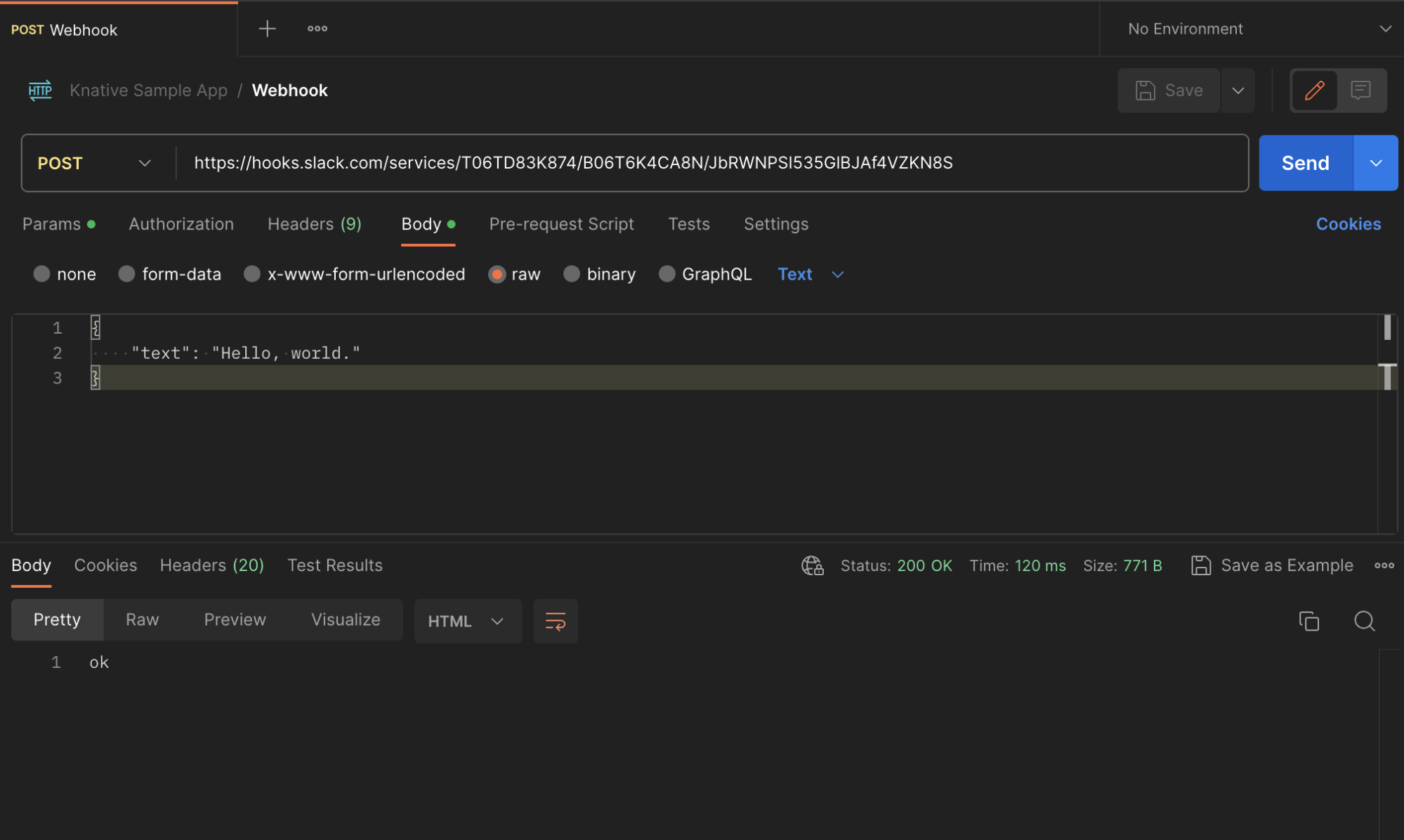
- 6: Afterwards, the text channel should have a new message.
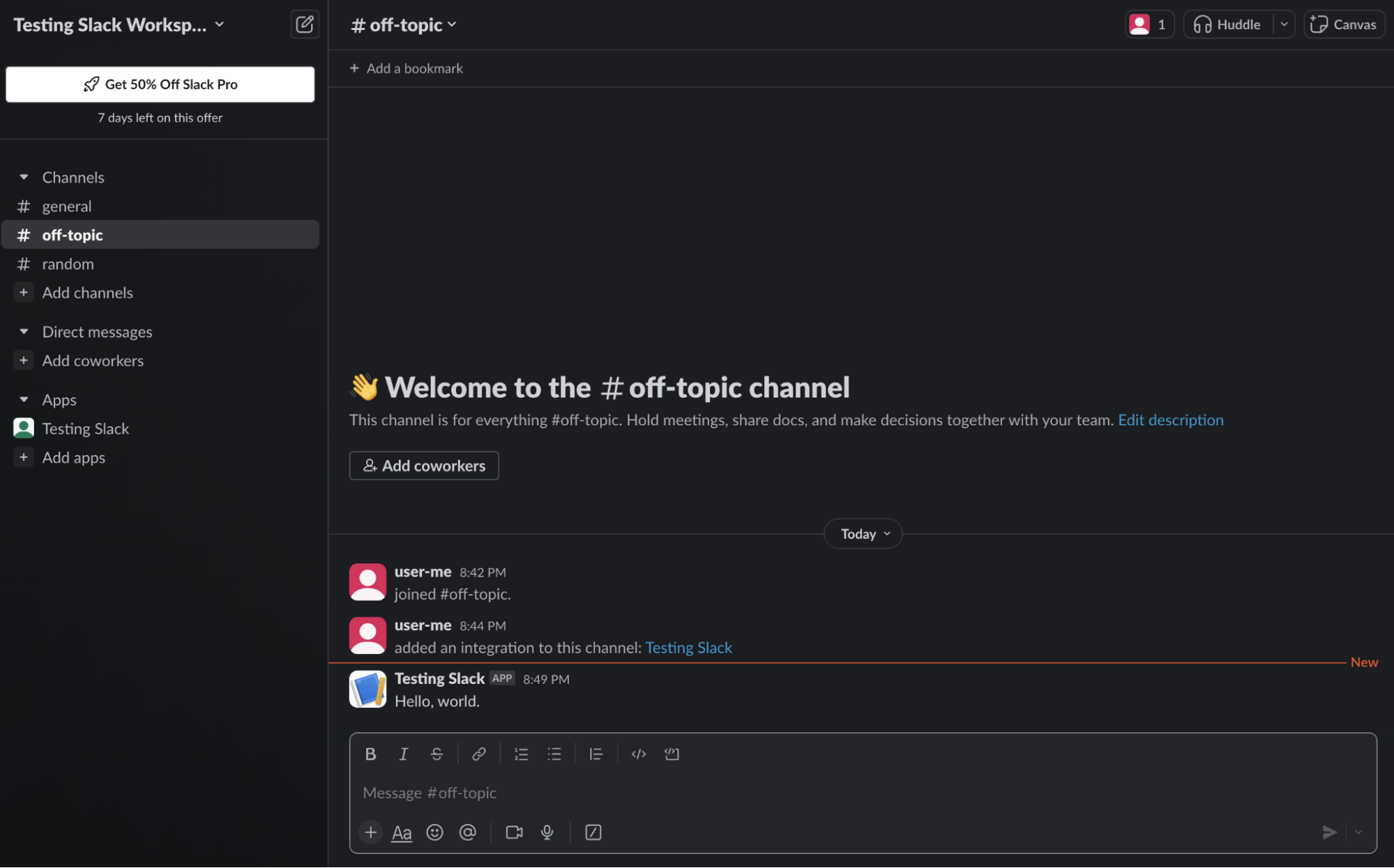
- 7: Go to Slack's webhook documentation to learn more about setting up webhooks.
Treat the webhook URL as a credential. Do not commit it or share it in logs or support requests. After the test message appears in the intended channel, return to the extension's credential setup.