Environment Setup
Starting state: You have read the Bookstore overview and prerequisites. Use a disposable kind Quickstart cluster, the published frontend/backend images, and the manual commands below. Other environments and the setup script are optional alternatives, not steps in this route.
By the end of this lesson, the frontend opens in your browser and connects to the Node.js review service. The database and event-processing path are not connected yet.
Clone the Repository
git clone https://github.com/knative/docs.git
cd docs/code-samples/eventing/bookstore-sample-app/start
If you already have a checkout, use its code-samples/eventing/bookstore-sample-app/start directory instead. The first docs in the command is the repository directory, not the website's docs/ content directory.
Troubleshoot cloning errors if needed. Review the disclaimer and third-party licenses before using the sample.
File Structure
The sample app has two directories:
start: supplied source and initial configuration. Create your lesson YAML files here.solution: completed configuration and function code for comparison when stuck.
All commands are run from start unless the lesson explicitly enters a function project. Save that location in your terminal so you can return to it:
export BOOKSTORE_START="$PWD"
pwd
Keep this terminal for the lesson commands. New terminals need to enter the same directory; BOOKSTORE_START is not automatically shared between terminals.
Shortcut
The setup-script notes explain the retained script's prerequisites and installation changes. It is not equivalent to the chosen route; continue with the manual instructions below rather than running it over your Quickstart cluster.
Instructions
Task 1: Set Up a Running Kubernetes Cluster with Knative Installed
Reuse the cluster from Quickstart installation. If you deleted it, recreate it with that lesson's kn quickstart kind instructions. Do not run the Bookstore setup script over it; that script applies separate latest-release installations.
Check your context before applying resources:
kubectl config current-context
kubectl config set-context --current --namespace=default
kubectl get pods -n knative-serving
kubectl get pods -n knative-eventing
kubectl get crd sequences.flows.knative.dev inmemorychannels.messaging.knative.dev
The context should be your disposable Quickstart cluster, normally kind-knative. Switch to it if necessary. Wait for Serving and Eventing pods to be Ready. The two CRDs must exist for the later Sequence lesson; if absent, resolve the Eventing installation before proceeding.
Install and run the kind LoadBalancer provider using kind's instructions, including its host/container-runtime permissions. Keep the provider running while accessing this sample. This is additional to Quickstart's Kourier ingress: the frontend and backend below are ordinary Kubernetes LoadBalancer Services.
Task 2: Running the Bookstore Web App
Deploy the Frontend App
Use the pre-built image already specified in the supplied YAML; there is no image-build step in this route.
kubectl apply -f frontend/config/100-front-end-deployment.yaml
kubectl rollout status deployment/bookstore-frontend --timeout=300s
Expected result
Kubernetes creates deployment.apps/bookstore-frontend and service/bookstore-frontend-svc. The Deployment rollout completes. Generated pod names vary.
Access the frontend workload
kubectl get service bookstore-frontend-svc
Wait for an EXTERNAL-IP, then open http://<EXTERNAL-IP> in your browser. Use the address from your output, not one copied from a screenshot.
Verify
The bookstore page appears. It does not yet have a running backend or database.
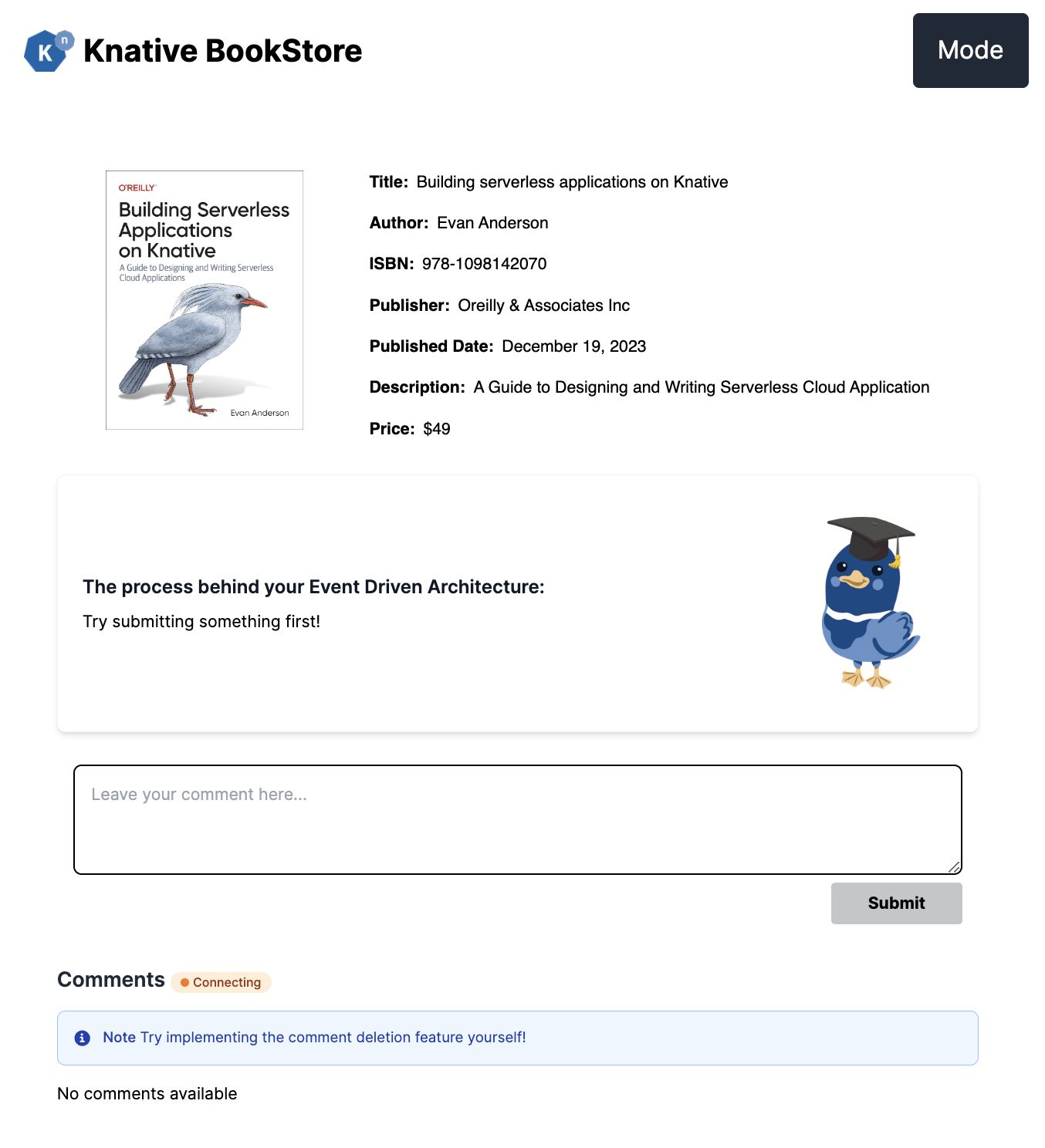
If EXTERNAL-IP stays <pending>, check that the kind LoadBalancer provider is running and consult its troubleshooting instructions. Quickstart ingress being reachable is not sufficient evidence that these Services have external addresses.
Task 3: Running the Book Review Service
Deploy the Book Review Service: Node.js Server
Use the pre-built Node.js image from the supplied configuration:
kubectl apply -f node-server/config/100-deployment.yaml
kubectl rollout status deployment/node-server --timeout=300s
kubectl get service node-server-svc
Expected result
Kubernetes creates deployment.apps/node-server and service/node-server-svc, and the Deployment rollout completes.
Access the node server backend
Wait for the backend's EXTERNAL-IP and open http://<EXTERNAL-IP>. The backend root endpoint returns Hello, world!, not a bookstore UI.
Return to the frontend. Its connection indicator should turn green and say Connected to node server. The frontend proxies backend requests using node-server-svc in the pod's namespace; the backend uses postgresql.default.svc.cluster.local, so keep this exercise in default.

The backend tries to read database comments before you deploy PostgreSQL. Database connection/query errors and the absence of comments are expected at this stage; the connection indicator is not proof that the database is ready. Do not submit reviews yet: the Broker and SinkBinding are created in the next lesson.
Troubleshooting
If a rollout fails, inspect status and logs rather than proceeding:
kubectl get pods
kubectl describe deployment bookstore-frontend
kubectl describe deployment node-server
kubectl logs deployment/bookstore-frontend
kubectl logs deployment/node-server
For an individual pod, use kubectl logs <pod-name> with its actual name. Check image-pull errors and container startup failures. For a pending external address, check the LoadBalancer provider, not only the application logs.
Next Step
Proceed only when the frontend opens, the backend responds, and the frontend shows a backend connection.
Previous: Bookstore overview · Next: Send a review to the Broker