Welcome: Knative Bookstore Tutorial
Build an educational bookstore sample after the Knative basics. Submit a review, observe its event-driven processing, and see an accepted review appear with a sentiment emoji.
If this is your first encounter with Knative, complete the Quickstart Serving and Eventing route first. Bookstore combines several technologies; it is not production-application guidance. Its disclaimer, third-party acknowledgments, and media licenses remain available throughout the tutorial.
What are we building?
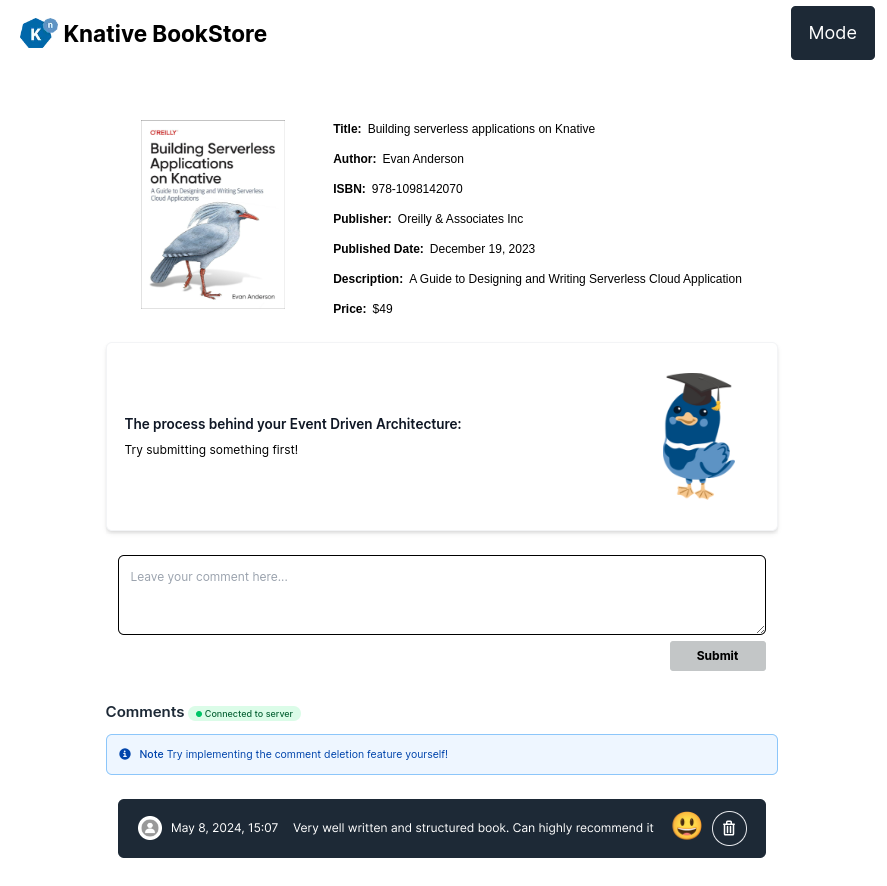
The bookstore displays a single book. Readers submit anonymous reviews. Two Python functions check for inappropriate language and classify sentiment; accepted reviews are stored in PostgreSQL and displayed in the frontend. Reviews classified as inappropriate are excluded from insertion and can still be inspected in the event-display logs. Classifier results are not guaranteed to be accurate.
The core tutorial ends when you can submit a review and observe both its processed CloudEvent and its appearance in the UI. Slack notifications are an optional extension.
Learning Goal
You will:
- Connect a Kubernetes Deployment to a Broker using a SinkBinding.
- Inspect review CloudEvents with an event-display sink.
- Create and deploy two Knative Functions.
- Run those functions in order using a Sequence and return the processed event to the Broker.
- Filter processed events with a Trigger and send accepted reviews to the database API.
The exercise illustrates an event-driven design rather than a direct request chain between every component. It does not establish delivery guarantees, production readiness, or a general migration strategy for your application.
Before you begin
- Complete the Quickstart, including requesting a Service and sending and receiving an event.
- Be comfortable applying YAML with
kubectland inspecting resource status and pod logs. - Have Git, Docker,
kind,kubectl,kn, and a browser available. - Have a disposable kind cluster with Serving, Eventing, and InMemoryChannel support. You can reuse the Quickstart cluster if you have not cleaned it up.
- For the setup below, install and run kind's LoadBalancer provider. Quickstart's Knative ingress does not by itself provide external addresses for the sample's two ordinary Kubernetes LoadBalancer Services.
- Before lesson 2, install
funcand have a container registry that you can push images to and that the cluster can pull from. Use public sample images unless you have configured private image pulls.
Use the default namespace: the sample backend's PostgreSQL address is hard-coded to that namespace. The setup lesson establishes the working directory and verifies the frontend/backend connection.
Bookstore Architecture
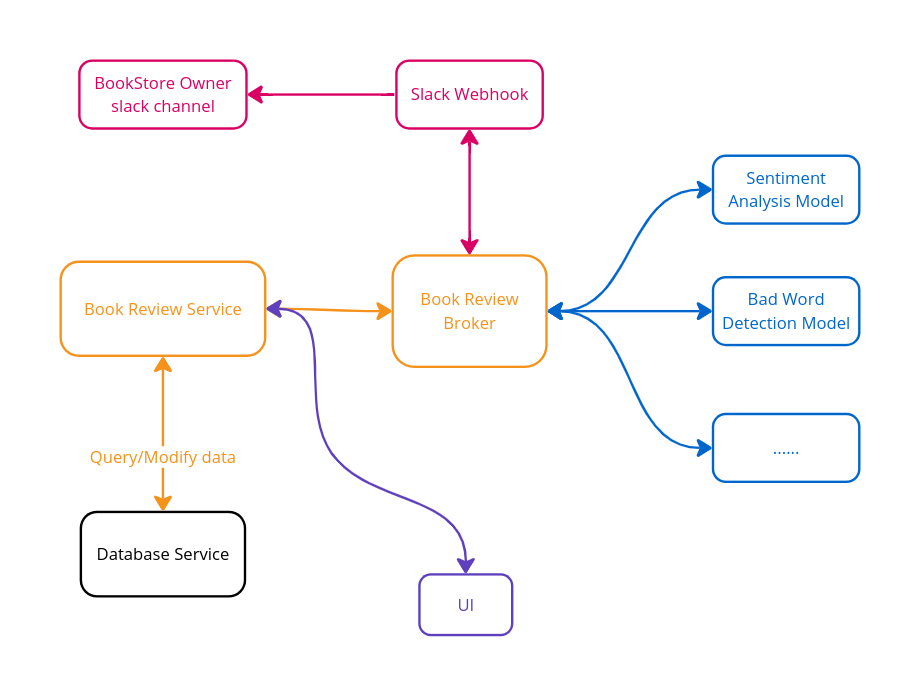
| Component | Role in this sample |
|---|---|
| User interface | Next.js frontend deployed as a Kubernetes Deployment. It proxies requests and WebSocket traffic to the review service. |
| Book reviews service | Node.js Deployment. /add forwards new review events to the Broker, /insert inserts processed reviews, and /comments streams database rows to the frontend. |
| ML model services | Two Knative Functions, called in order by a Sequence: inappropriate-language filter, then sentiment analysis. |
| Bookstore Broker | Receives review events; Triggers select subscribers for the original and processed event types. Delivery behavior depends on the installed implementation. |
| Database service | PostgreSQL StatefulSet with a persistent volume claim and an initialization Job. This sample is not a production database setup. |
| Notification service (optional) | Apache Camel K Pipe that sends selected CloudEvents to a Slack webhook. |
| Bad-word Broker (optional) | Receives events selected by a Trigger before the Camel K Pipe sends them to Slack. |
Tutorial Page Structure
Core route — follow in order
- Environment setup: deploy and access the frontend and review service.
- Send a review to the Broker: connect the backend and observe a
new-review-commentevent. - Deploy sentiment analysis: create a Python function and verify its CloudEvent response.
- Deploy the inappropriate-language filter: create and verify the second function.
- Connect the functions with a Sequence: observe a
moderated-commentevent returned to the Broker. - Deploy the database: initialize PostgreSQL and view the sample comments.
- Route accepted reviews to the database: submit a review and observe the completed application.
Optional extensions — after the core result
- Slack/Camel K integration recipe: pending runtime validation of operator scope, namespaces, registry, and webhook delivery. This is supporting experimental configuration, not a verified executable lesson.
- Extra challenges: open-ended exercises, including Telegram integration and comment deletion. Some require the notification extension.
- Alternative setup notes: existing clusters, minikube, image builds, and the setup script.
How to properly learn?
Step-by-Step Guidance for Beginners
Follow the core lessons in order after Quickstart. Run each lesson's commands from the stated directory, and pass its verification before proceeding. Use the sample repository's solution directory to compare your work when stuck; do not deploy the whole solution over your partially completed exercise.
Accelerated Learning Path for Advanced Users
Use the architecture table to jump to a component lesson or consult setup alternatives. These are shortcuts to supporting detail, not permission to skip the starting-state and verification requirements of the core lessons.
Preview the final Bookstore
The demo includes the optional Slack extension; you do not need to reproduce that branch to complete the core tutorial.
Watch the demo on YouTube. See the music and graphic licenses.
Help
Ask questions in the CNCF Slack #knative channel. Search existing discussions first, and include the lesson, resource status, and relevant logs. Do not share registry credentials or Slack webhook URLs.